The five-line brief: how to get a better first draft from ChatGPT or Copilot at work
Most weak AI drafts are weak briefs. Here is a short method, with worked prompts for emails, meeting notes and reports.
By AS Online Journal · 7 min read Published · Updated
In short
Most disappointing AI drafts are not the tool's fault. They come from a one-line request that leaves the assistant to guess the reader, the facts and the tone. A five-line brief (job, reader, facts, limits, ask) fixes most of that in under a minute. You still check every fact before anything leaves your hands.
Why "write an email to Sam" gets you a bland email
An assistant like ChatGPT or Microsoft Copilot predicts a plausible answer from what you give it. Give it six words and it fills the gaps with the most average email it can imagine. That is why first drafts so often sound polite, padded and slightly wrong.
The fix is not a clever trick phrase. It is the briefing you would give a capable temp on their first day. Who is this for, what must it say, what must it not say, and what should happen next?
If you want a ready-made set of copy-and-adapt prompts once you have tried the method below, we publish our own AS Online product, The AI Prompt Playbook for Work, for £9. Everything in this article works without it.
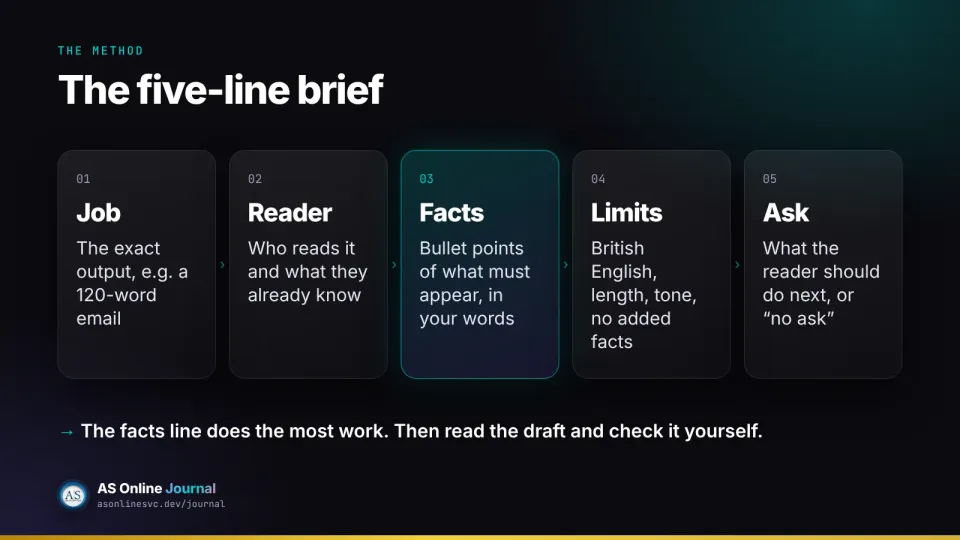
The five-line brief
Keep these five lines in a note and paste them in before any request that matters.
Comparison at a glance
Line
What to write
Why it helps
Job
The exact output: "a 120-word email", "a one-page outline", "a tighter version of my paragraph"
Stops it guessing the format and length
Reader
Who will read it and what they already know
Sets the tone and the level of detail
Facts
Bullet points of what must appear, in your words
Keeps it from inventing details
Limits
British English, length, tone, "do not add facts I have not given you"
Cuts padding and made-up promises
Ask
What the reader should do next, or "no ask"
Gives the draft a clear ending
The facts line does the most work. If you only add one thing to your prompts this week, make it a short bullet list of facts written by you.
Worked example 1: a delay email to a client
Here is the one-liner most people type:
Write an email telling the client the report is late.
And here is the same request as a five-line brief:
Job: draft a short email, under 120 words.
Reader: Priya, operations lead at a client. She is busy and
expects the quarterly report on Friday.
Facts: the report will now arrive on Tuesday 24 November.
The delay is because one data set arrived late from a supplier.
The figures already checked will not change.
Limits: plain British English. One apology, not three.
Do not offer a discount or a call. Do not add facts I have
not given you. Flag anything you had to assume.
Ask: end by asking her to tell us by Monday if Tuesday
causes a problem.
The second version tells the assistant what not to do, as well as what to do. That matters, because a helpful-sounding model will happily offer a call or a refund you never agreed to.
The "flag anything you had to assume" line is worth keeping in every brief. It turns hidden guesses into a short list you can check.
Worked example 2: rough meeting notes into actions
Meeting notes are where assistants can save real time, and where they most often invent owners and dates. Brief it to extract, not to imagine:
Job: turn my notes below into a list of decisions and a
table of actions (action, owner, due date).
Reader: the five people who were in the meeting.
Facts: use only the notes below.
Limits: if an action has no owner or no date in the notes,
write "not agreed" rather than guessing. British English.
Ask: no ask. End after the table.

[paste your notes]
If you use Microsoft 365 with Copilot, Microsoft says Copilot works inside Word, Excel, PowerPoint, Outlook and Teams, and can summarise documents, emails and meetings. In that case you can point Copilot at the meeting or the document rather than pasting text, subject to your organisation's settings.
Worked example 3: a report section, outline first
For anything longer than an email, ask for the structure before the prose. It is much quicker to fix five headings than five paragraphs.
Job: propose an outline for a one-page section called
"What changed this quarter". Headings plus one sentence
each. Do not write the full section yet.
Reader: the senior team, who know the project but not
the detail.
Facts: [your bullet points]
Limits: no more than five headings. Mark any heading you
cannot support from my facts as "needs evidence".
Ask: none.
Once you have approved the outline, the next message is short: "Now write section 2 in about 150 words, using only my facts." Microsoft describes the same pattern for Copilot in Word: prompt with the task, add notes, then refine in the chat.
The second pass: ask it to criticise itself
A useful habit is a second message that turns the assistant from writer into editor:
Read your draft as Priya would. List anything that is vague,
anything that sounds like a promise, and any sentence longer
than 25 words. Then give me a revised version.
This does not make the draft correct. It does tend to catch padding and accidental commitments, which are the things that cause trouble after you press send.
When to write it yourself
Some messages are better written without an assistant: condolences, a disciplinary or legal letter, anything where the exact wording carries legal weight, and anything whose facts you cannot check. You can still use the five lines to organise your own thinking. Then write those messages yourself.
What you still have to check
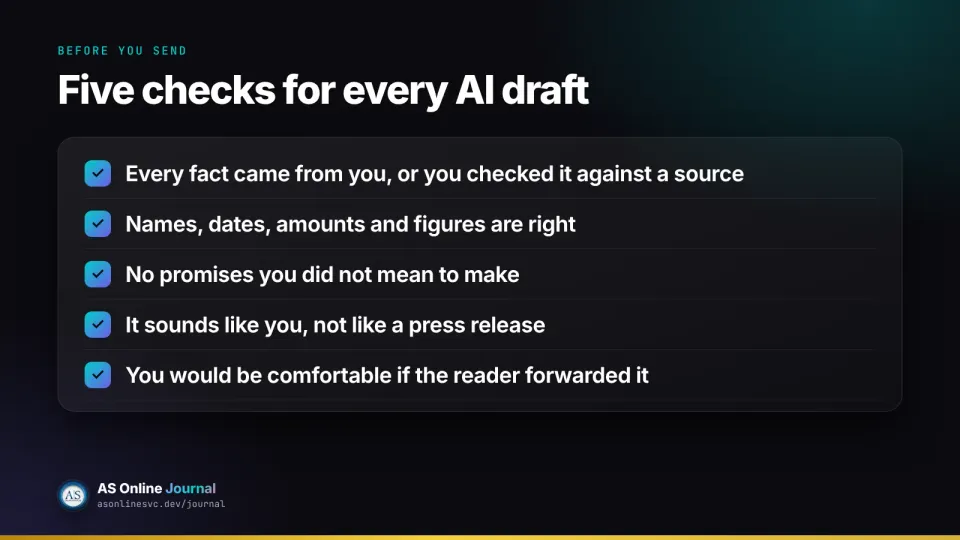
OpenAI's own help page says ChatGPT can produce incorrect or misleading answers, can sound confident when it is wrong, and should be used as a first draft rather than a final source. That applies to every assistant. Before you send anything:
every fact came from you, or you have checked it against a source
names, dates, amounts and figures are right
there are no promises you did not mean to make
it sounds like you, not like a press release
you would be comfortable if the reader forwarded it
Which account you use matters
Where you type the brief matters as much as what you type. OpenAI's data controls page says that on personal ChatGPT Free, Plus and Pro workspaces, "Improve the model for everyone" is on by default. You can turn it off under Settings, then Data controls. OpenAI also says that by default it does not train on content from ChatGPT Business, Enterprise or Edu workspaces.
The UK's National Cyber Security Centre advises not to include sensitive information in queries to public AI tools. In practice that means work material goes into the tool your employer has approved, under its settings, not into a personal account on your phone.
Plans change quickly. At the time of writing, OpenAI's pricing page lists Free, Go, Plus and Pro for individuals, and Business and Enterprise for organisations. Microsoft's UK pages list Copilot in Microsoft 365 Personal, Family, Premium and Pro (on Family and Premium the AI features are for the subscription owner only), plus business plans with Copilot. Check the official pages before you buy anything.
A product from AS Online
This article is paired with our own product, The AI Prompt Playbook for Work, at £9. It is not a third-party offer and it does not include a software login.
It contains 150 original copy-and-adapt prompts grouped by task, from everyday and careful emails to reports, spreadsheets, meetings, presentations and research. Each has a "when to use this" note and a line on what you still have to check. You also get a CSV of the same prompts for Excel, Google Sheets or Notion. It is for people who already have an assistant and want better briefs. It does not promise faster or better-paid work.
Does this method work in both ChatGPT and Microsoft Copilot?
Yes. The five lines are plain instructions, so they work in any chat assistant. In Copilot inside Word or Outlook you can also point it at a file or an email thread instead of pasting text.
Should I paste confidential work into a personal ChatGPT account?
No. OpenAI says content in personal Free, Plus and Pro workspaces may be used to train models by default. Use the work tool your organisation has approved, and follow its rules.
Will a better brief make AI output accurate?
It makes a useful draft more likely. It does not make the output reliable. OpenAI's own help says ChatGPT can be confidently wrong, so you still check facts, names and numbers.