Learn to use an AI assistant in seven short days (with the tool you already have)
A beginner's week: one idea and one small exercise a day, ending with a personal rulebook. No new subscription needed.
By AS Online Journal · 7 min read Published · Updated
In short
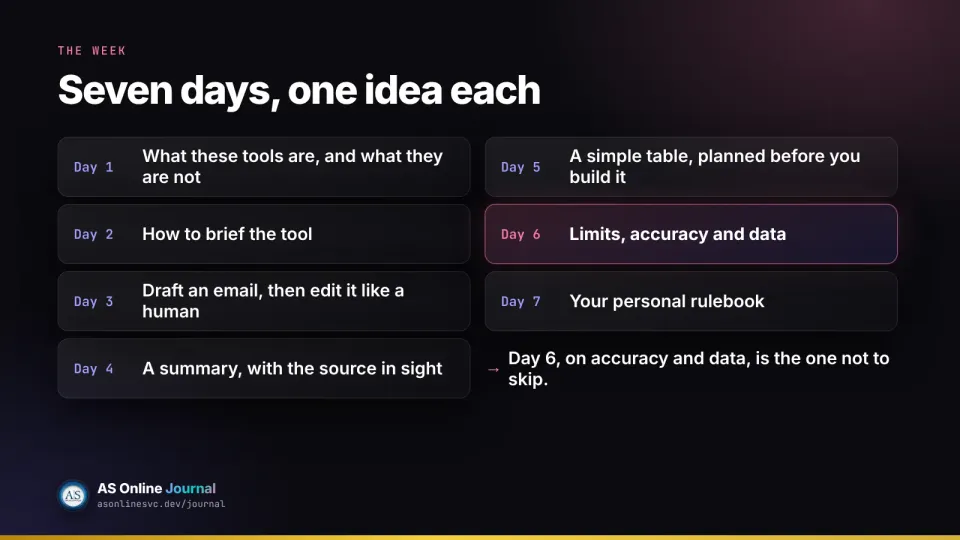
You can get genuinely comfortable with an AI assistant in a week, using a free plan and about 40 minutes a day. The trick is to learn one idea at a time, practise it on something real but low-risk, and finish with a short set of personal rules. Day 6, on accuracy and data, is the one not to skip.
Who this week is for
This is for people who have opened ChatGPT or Copilot a few times, typed a question, got a confident answer and were not sure what to make of it. You do not need any technical background, and you do not need to buy anything. If you already use an assistant most days, you will probably find days 1 to 3 familiar; skip to day 4.
OpenAI's pricing page says the free version of ChatGPT is available to everyone. Microsoft's UK plan pages describe paid Microsoft 365 plans as giving "higher usage than free" for Copilot, so there is a free tier there too, with lower limits. Use whichever you already have, and stick with it for the week.
If you would like a printable version with three exercises a day, space to write and a glossary, we publish our own AS Online product, Learn AI in 7 Days: Beginner Workbook, for £7. The plan below stands on its own.
Day 1: what these tools are, and what they are not
An AI assistant predicts useful-looking text from your instruction and, sometimes, from files you attach. That is enough to be helpful for a first draft. It is also enough to be wrong with a straight face.
It is not a colleague who knows your business, not a search engine that has checked a page for you, and not a safe place for secrets. It does not take responsibility for what you send.
Exercise: ask your assistant three questions about something you know well, such as your town, your job or a hobby. Mark each answer right, partly right or wrong. Notice how confident the wrong parts sound.
Day 2: how to brief the tool
A vague request gets a vague answer. A brief does some of the work for it. Five parts cover most requests: the job, the reader, the facts, the limits and the ask.
Exercise: take a one-line request and rewrite it as a brief.
Before: Write something about our village fete.

After: Write a 100-word notice for the village noticeboard.
Readers: local families. Facts: 13 June, 11am to
4pm, on the green, free entry, cake stall and dog show.
Tone: friendly, plain British English. Do not add any
events I have not listed. End with "All welcome".
Run both versions and compare. The second will not be perfect, but it will be about the right length, include the right facts and leave out invented ones.
Day 3: draft an email, then edit it like a human
Pick a low-stakes email you need to write anyway, such as asking a neighbour to move a bin or confirming a booking. Write the facts in bullet points yourself, then ask the assistant to draft it.
Exercise: edit the draft by hand. Cut any sentence you would not say out loud. Remove any extra apology, any promise you did not make and any "I hope this email finds you well". Then compare the length of your edited version with the draft. Most people delete a surprising amount.
Day 4: a summary, with the source in sight
Summaries are one of the most useful things these tools do, and one of the easiest places for an error to slip in. The habit to build is keeping the original open while you read the summary.
Exercise: choose a public web page or a leaflet you are allowed to share. Ask for a five-bullet summary that "quotes any figures exactly and says what is unclear". Then check two figures and one claim against the original. If the assistant shows links to its sources, open at least one and see whether it really says what the summary claims.
Day 5: a simple table, planned before you build it
Assistants are good at suggesting a structure. They are less reliable at doing sums from text you paste in, unless they use a calculation tool. OpenAI's help page notes that some plans include data analysis tools for accurate calculations.
Exercise: ask the assistant to propose columns for a simple table, such as a weekly meal plan, a holiday packing list or a book list. Ask it to explain each column in one line. Build the table yourself in a spreadsheet, keeping only the columns you will actually use.
Day 6: limits, accuracy and data
This is the most important day.
On accuracy, OpenAI's own help page is frank. It says ChatGPT can produce incorrect or misleading answers, can sound confident when it is wrong, and can make up quotes, studies, citations and references. Its advice is to use ChatGPT as a first draft, not a final source, and to verify important information.
On data, the UK's National Cyber Security Centre recommends not putting sensitive information into public AI tools, and not asking anything that would cause problems if it were made public. If you use a personal ChatGPT account, OpenAI says "Improve the model for everyone" is on by default on Free, Plus and Pro. You can switch it off under Settings, then Data controls. OpenAI also says temporary chats are not used to improve its models, but may be kept for up to 30 days for safety.
Exercise: open your assistant's settings and find its data or privacy controls. Write down what each one is set to. Then ask the assistant for a book recommendation with "the year it was published and the publisher", and check both details yourself.
Day 7: your personal rulebook
Finish the week by writing your own rules on one page. Keep them short enough to remember.
My AI rules
1. I use it for: first drafts, rewording, outlines, summaries.
2. I don't use it for: medical, legal or money decisions,
   or anything I can't check.
3. I never paste: passwords, bank details, other people's
   personal information, anything confidential from work.
4. Before I send anything, I check facts, names, dates and
   numbers, and read it out loud.
5. My setting: [what you chose on Day 6].
Exercise: pin your rulebook somewhere you will see it. Then pick one task for next week where the assistant really helped, and one where it did not.
What to do after the week
Keep going with the same tool for a while before trying another. Most of the skill is in the brief and the check, and both carry across to any assistant.
A product from AS Online
This article is paired with our own product, Learn AI in 7 Days: Beginner Workbook, at £7. It is not a third-party offer and it does not include a software login.
It is a printable A4 PDF, plus an EPUB, for complete beginners. Each day has a plain-English explanation, three exercises, space to write, a few glossary terms and a reflection prompt, ending with a one-page personal rulebook. You use an assistant you already have. It is not an official OpenAI or Microsoft course, and it does not promise a job, a certificate or an income.
Do I need to pay for ChatGPT or Copilot to learn this?
No. OpenAI says the free version of ChatGPT is available to everyone, and Microsoft's plan pages compare paid Copilot usage with a free tier. A free plan is enough for a beginner's week.
How long does each day take?
About 35 to 50 minutes if you do the exercises properly. You can split a day across two sittings.
Is it safe to type personal information into an AI assistant?
Treat it with care. The NCSC advises against putting sensitive information into public AI tools. For practice, use made-up or public examples.