ChatGPT and Microsoft Copilot on one page: brief, draft, check
The few things worth remembering about each tool in November 2026, and a three-step routine you can print and keep by the keyboard.
By AS Online Journal · 6 min read Published · Updated
In short
You do not need to know everything ChatGPT and Microsoft Copilot can do. You need about one page: what each is for, where your words go, and a short routine of brief, draft and check. This article is that page, with plan names and settings checked against the official pages on 19 November 2026.
Why one page beats a long guide
Both tools change every few weeks. New model names, new agents and new buttons arrive faster than anyone can learn them. What changes far more slowly is the habit that gets you a usable result: a clear brief, a quick draft, and a proper check before anything is sent.
That habit fits on one page, so this article keeps to one page's worth of material, with sources for everything that will date.
If you want this as two printable A4 sheets, one for each tool, we publish our own AS Online product, The ChatGPT & Copilot Cheat Sheet Bundle, for £5. The routine below works without it.
The two tools at a glance
Comparison at a glance
ChatGPT
Microsoft Copilot
Where you use it
Browser, desktop and mobile apps
Inside Word, Excel, PowerPoint, Outlook and Teams, plus the Copilot app
Best at
Open-ended drafting, rewriting, explaining, research with cited web sources
Working on the file, email or meeting already in front of you
Individual plans (Nov 2026)
Free, Go, Plus, Pro
Microsoft 365 Personal, Family, Premium and Pro
Organisation plans
Business, Enterprise (and Edu)
Microsoft 365 business plans with Copilot, or a Copilot add-on
Training on your content
On by default for personal Free, Plus and Pro; you can switch it off
Covered by your Microsoft 365 account and your organisation's settings
A few details from the official pages, all at the time of writing:
ChatGPT Plus is described by OpenAI as including advanced reasoning with GPT-6, projects, scheduled tasks and custom GPTs. Pro adds GPT-6 Astra and higher limits. OpenAI lists a 256K reasoning context window on Go and Plus and 400K on Pro.
Copilot in Microsoft 365 Family works for the subscription owner only. Microsoft says the AI features cannot be shared with other family members.
Copilot in Excel needs the file saved to OneDrive with AutoSave on, according to Microsoft's UK pages.
Copilot Chat is included at no additional cost with eligible Microsoft 365 business plans. The full in-app Copilot comes with a Copilot plan or add-on.
At the time of writing, Microsoft's UK pricing page lists Microsoft 365 Business Standard with Copilot at £18.10 and Business Premium with Copilot at £24.60, per user per month, paid yearly and excluding VAT. The same page lists the Copilot Business add-on at £16.10 per user per month (shown at an offer price of £13.80 when we checked) and says some advanced AI features use usage-based billing. Its consumer page lists Microsoft 365 Personal at £84.99 a year at the standard price, with a first-year offer of £58.99 when we checked. OpenAI's pricing page did not show UK prices when we checked, so look at it directly before you subscribe.
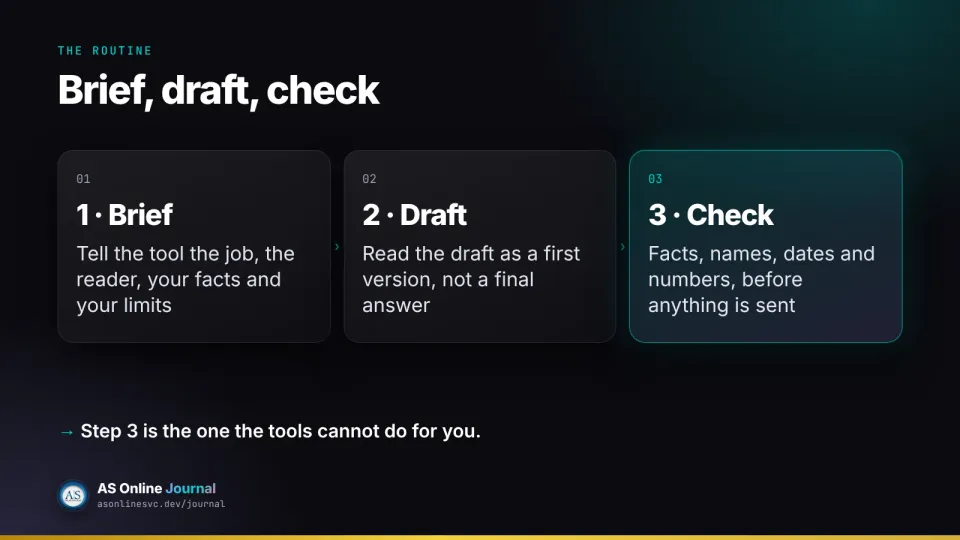
Step 1: brief
Every good result starts with five things: the job, the reader, the facts, the limits and the ask. Here is a fill-in version you can copy:
Draft [a short email / a one-page outline / a rewrite] for [reader].
Purpose: [purpose].
Use only these facts: [bullets].
Tone: plain British English, [plain / a little more formal].
Length: under [N] words.
Do not add facts, offers or apologies I have not supplied.
Flag any assumption you make.
End with [one clear ask / no ask].
Here is the same brief filled in, for a small firm telling clients about new opening hours:
Draft a short email for our regular clients.
Purpose: tell them our opening hours change on
Tuesday 1 December.
Use only these facts: we will open at 9am, not 8.30am;
closing time stays 5.30pm; phone and email are unchanged;
no action is needed.
Tone: plain British English, friendly.
Length: under 80 words.
Do not add facts, offers or apologies I have not supplied.
Flag any assumption you make.
End with no ask.
In ChatGPT
Paste the brief, then your facts. If you are working on the same topic all week, OpenAI's Plus plan includes projects, which keep related chats and files together.
For something you do not want in your history, OpenAI says a temporary chat does not appear in history, does not update memories and is not used to improve its models while it stays temporary. It may be kept for up to 30 days for safety. Save it, and it becomes a regular chat.
In Copilot
Open the document or email first, then ask. Microsoft's own examples follow the same pattern: give Copilot the task, attach or reference your notes, then refine in the chat. In Outlook, summarising a long thread before you reply is one of the jobs Microsoft highlights.
Step 2: draft
Read the first draft for shape, not polish. Is it the right length? Does it answer the right question? If not, do not edit it by hand yet. Send one short correction:
Shorter, please: under 80 words. Keep the second
paragraph's facts, drop the opening pleasantries,
and end with the question about Monday.
One or two rounds is usually enough. If you are on a fifth round, the brief was missing something. Go back and add it.
Step 3: check
This is the step the tools cannot do for you. OpenAI's own help page says ChatGPT can sound confident even when it is wrong, and can invent quotes, figures and references. The same caution applies to any assistant.
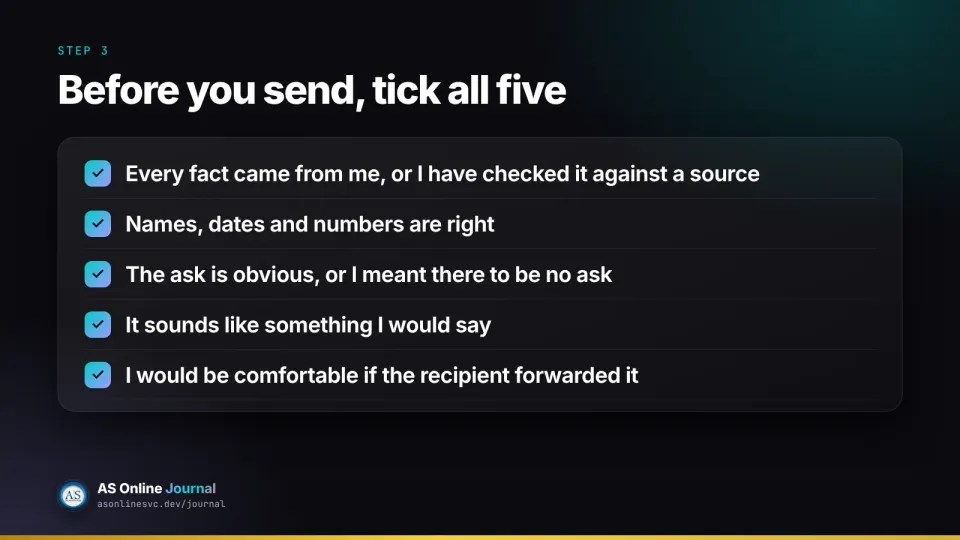
Before you send, tick all five:
☐ every fact came from me, or I have checked it against a source
☐ names, dates and numbers are right
☐ the ask is obvious, or I meant there to be no ask
☐ it sounds like something I would say
☐ I would be comfortable if the recipient forwarded it
Your data, on one line each
Personal ChatGPT (Free, Plus, Pro): "Improve the model for everyone" is on by default. Turn it off under Settings, then Data controls.
Thumbs up or thumbs down: OpenAI says the whole conversation may be used for training if you give feedback, even after you opt out.
ChatGPT Business, Enterprise, Edu: OpenAI says it does not train on this content by default.
Copilot at work: use your work account under your organisation's rules, not a personal account on the side.
A product from AS Online
This article is paired with our own product, The ChatGPT & Copilot Cheat Sheet Bundle, at £5. It is not a third-party offer and it does not include a software login.
You get two printable A4 sheets, one for a ChatGPT-style chat and one for Microsoft Copilot in Word, Outlook, Excel and PowerPoint, plus an EPUB of the bundle. Each sheet has a short way to brief the tool, a fill-in prompt and an "is this good enough to send?" checklist. They are original AS Online sheets, not official OpenAI or Microsoft documents, and they deliberately leave out prices, because prices change.
What is the difference between ChatGPT and Microsoft Copilot?
ChatGPT is OpenAI's chat assistant, used mainly in a browser or app. Microsoft Copilot is built into Microsoft 365 apps such as Word, Excel, PowerPoint, Outlook and Teams, so it can work on the document or email in front of you.
Are temporary chats in ChatGPT private?
OpenAI says temporary chats do not appear in history, do not update memories and are not used to improve its models while they stay temporary. They may be kept for up to 30 days for safety purposes.
Can my family use my Copilot features on Microsoft 365 Family?
No. Microsoft says the AI features in Microsoft 365 Family are only available to the subscription owner and cannot be shared.