GuidesPractical guide

6 min readNew
The UK's National Cyber Security Centre has published free, plain-English advice for small organisations. Here is how to turn it into one repeatable half hour.
You do not need to buy anything to start securing a home office. The UK's National Cyber Security Centre (NCSC) publishes free guidance for small organisations, and the first steps use settings your devices already have. This guide turns that guidance into one half-hour you can repeat every few months. It covers devices, updates, accounts, backups and connected gadgets. It does not replace a professional assessment if you handle sensitive client data.
The NCSC's small organisations guide says there are 5.5 million UK small organisations with up to 49 employees, that small businesses are as likely as larger ones to experience online crime, and that one in two suffers a cyber incident every year. Many of its recommendations can be completed in as little as five minutes. We cannot independently verify the one-in-two figure, so read it as the NCSC's own estimate.
Set a timer. Each step names its source.
Per the NCSC's devices guidance: use a 6-digit PIN or a strong password, and fingerprint or face recognition if you like. Use a different PIN for each device, avoid guessable ones such as 123456 or 000000, and change any default password. If you share a device, set a PIN or password as well as biometrics so others can unlock it.
The NCSC says the best way to protect against viruses is to keep devices, software and apps up to date, and to set apps to update automatically. Check your browser too: its "Check your web browser" tool is linked from the same page. If a phone, laptop or computer no longer receives updates, replace it. You do not need the latest model, only one that is still supported.
The NCSC says modern devices have antivirus and a firewall built in and on by default, but a previous user may have turned them off, so look. It says Apple devices have built-in virus protection and that you do not need antivirus on a smartphone if you only install apps from official stores.
The NCSC's top tips start with a strong, separate password for your email, because criminals can use it to reach your other accounts, and with turning on 2-step verification (2SV). Add 2SV to email first, then banking and work accounts. If you are tempted to reuse passwords, a password manager helps, and the NCSC has a page on password managers.
The NCSC's top tips say to back up your most important data, such as photos and key documents, to an external hard drive or a cloud-based service. The part people skip is testing it: pick one file and restore it somewhere else, to check that the backup works.
Smart speakers, cameras, thermostats and printers are all connected devices. The NCSC's smart devices advice says to change any default password, turn on 2SV if offered, turn on automatic updates, and switch off remote access if you do not need it away from home. It also says to check how long a device will be supported, since an unsupported smart device is easier to hack.
The NCSC pages we read do not give home-router steps, so this is our reading, not NCSC advice. A router is another connected device with a login, so the same habits are a sensible place to start: change a default admin password, install updates, and switch off remote access you do not use. Check your internet provider's or the manufacturer's instructions for how.
For anyone going through Cyber Essentials, the requirements document says home and remote working devices are in scope. A router is in scope only if the organisation supplied it, and otherwise you apply firewall controls such as a software firewall on the devices. If a corporate VPN is used, the company firewall becomes the internet boundary.
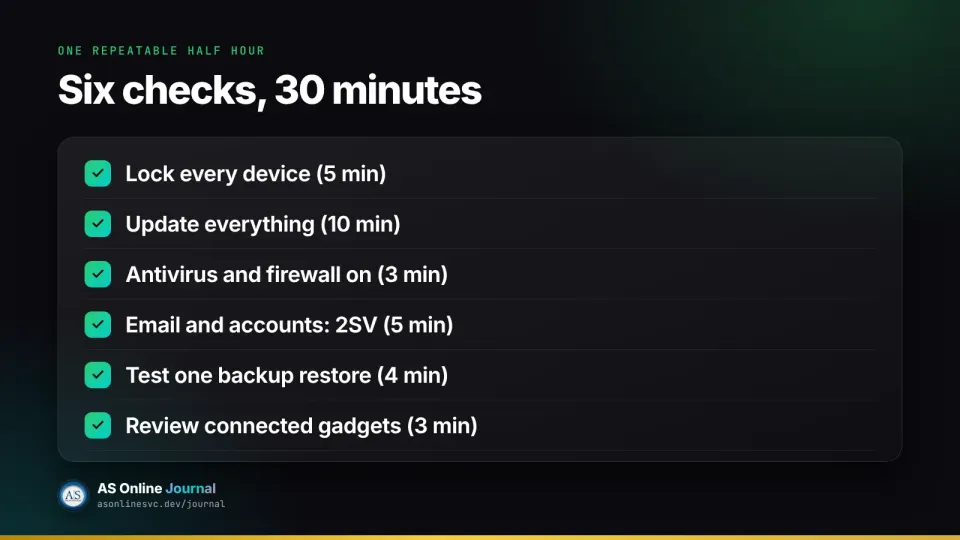
Write the date of your check in a note, together with anything you could not fix. Repeat every three to six months, or when you buy a new device. The point is a habit, not a perfect score.
This guide is free and needs no purchase. It is general information, not professional security advice.
Not to start. The NCSC's small-organisation guidance is free and the first steps, such as turning on updates, two-step verification and backups, use settings you already have. Replace a device only if it no longer receives security updates.
The NCSC says modern devices come with antivirus and a firewall built in and switched on by default, but you should check they are on. It says Apple devices include built-in virus protection and that you do not need antivirus on a smartphone if you only install apps from official stores.
Only if your organisation supplied it. The Cyber Essentials requirements say routers given to home workers by the organisation are in scope, while other routers are out of scope, which means you apply firewall controls, such as a software firewall, on the devices themselves.