GuidesPractical guide

5 min readNew
Dust, storage, software, security and your browser all build up grime on different timetables. One honest afternoon, a back-up first, and no miracle 'optimiser' required.
You can wipe the Downloads folder and still have a PC that sounds like a hairdryer. You can blast the fans with compressed air and still be launching a crowd of programs at start-up. Cleaning a PC is not one job. It is five, each with its own timetable, and it is easy to do one of them and think you are finished.
This guide goes through them in the order that makes most sense: first the safety net, then the five kinds of grime. It is written for Windows. Where we cite a step, it comes from Microsoft's or the NCSC's own pages, checked today.
One caveat from Microsoft itself, before you invest an afternoon: on older PCs with outdated hardware, these steps may not bring a big improvement, and a new machine may be the better long-term answer.
Deleting files is the one part of a clean-up you cannot undo. So copy first. The NCSC says to back up everything you need to keep, either online (it names iCloud, Google Drive and OneDrive) or on an external device such as a USB stick or hard drive, and gives instructions for each. If your last backup was a vague memory, do this before reading further. Our plain-English guide to backups you can actually restore shows how to test one in about twenty minutes.
HP says heat and dust build-up take a toll on a tower's cooling system. It lists the CPU fan and heatsink as the most important pieces of that system, followed by the case and power-supply vents.
HP's guidance, in short:
For laptops and sealed all-in-one machines, follow the manufacturer's instructions rather than prising anything open. A warm, noisy machine with clear vents is a different problem from one that is simply choked.
Windows has a built-in tool for this, and it is more careful than you might fear. Microsoft says Storage Sense, with default settings, runs when you are low on disk space and clears unnecessary temporary files. Recycle Bin items are deleted after a set time, but your Downloads folder and OneDrive files are left alone unless you switch those options on. One catch: it works only on your system drive, usually C:.
To turn it on, go to Start > Settings > System > Storage and set Storage Sense to On. To run it right now, open Storage Sense and choose "Run Storage Sense now". To see what is taking space, use the "Temporary files" section on the same Storage page, tick only what you recognise, and choose "Remove files".
Be your own editor on Downloads. It is the drawer where installers, old PDFs and half-finished things collect. If you decide to let Storage Sense empty it for you, you choose how many days a file must sit unopened first. Set that number generously, and go through the folder by hand once before you switch it on.
This is the clean-up that most often changes how a PC feels, and it costs nothing.
Microsoft lists these steps among its performance fixes:
The NCSC adds a security reason to the same habit: delete software you no longer use, because it saves storage and can improve performance, and because an app that no longer gets updates is a risk. It also says to download apps only from official stores or websites.
Out-of-date software is the dirtiest thing on many PCs. The NCSC says the best way to protect against viruses and other malware, including ransomware, is to keep all your devices, software and apps up to date.
Because people want cleaner PCs, scammers sell the idea. Microsoft describes the pattern: a fake virus warning on a website, a screen full of pop-ups, an alarming sound, and a phone number to call. It says genuine Microsoft error and warning messages never include a phone number, that Microsoft does not make unsolicited support calls, and that it will never ask you to pay for support with cryptocurrency or gift cards.
If you see one, do not call. Close the browser (Alt + F4, or end it in Task Manager), restart if you need to, and run a scan with Windows Security. If you gave a caller access to your PC, Microsoft's advice is to remove any app they asked you to install, run a full scan, change any passwords you shared, ask your card provider about any payment, and consider resetting the device if they had remote access. In the UK you can report fraud and cyber crime to Report Fraud, on 0300 123 2040 or through its website.
Microsoft's own list of ways to speed up a slow PC uses tools that already ship with Windows, with an optional Microsoft PC Manager app. We have not tested any paid cleaner, so we make no claim about them either way. We would simply not buy one because a pop-up told us to.
Most of your day happens in a browser, so keep it tidy. The NCSC says an out-of-date browser can contain bugs a criminal could use against your device. Most browsers update automatically, but some need a restart before an update takes effect, so close and reopen yours now and then. The NCSC also offers a "Check your web browser" tool that works with Chrome, Edge, Safari and Firefox.
Our suggestions from there, which are habits rather than rules from a source: look through your extensions once in a while and remove any you do not recognise or no longer use, and sign out of accounts on shared or borrowed machines. For a fuller check, our free 30-minute home office security check covers accounts and devices together, and the family password manager questions cover the habit that protects everything else.
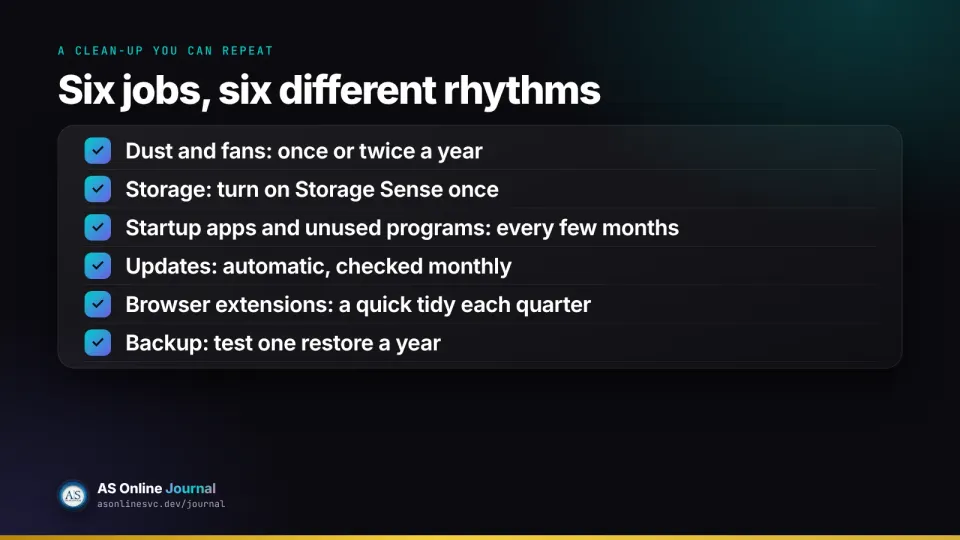
The rhythm in the graphic above is our suggestion, built from the sources here. Only the dust interval comes straight from a manufacturer (HP). The rest is common sense, and you can change it to suit how you use your PC. The point is that a clean PC is a habit, not a rescue mission.
It will not make an ageing machine new. It will not repair a failing drive. Cleaning cannot replace a backup, and a backup cannot replace an update. Do all five once, with the safety net in place, and you will have covered the ground.
HP's guidance for desktop towers is roughly once a year, or about every six months if the machine sits on the floor or lives with pets or smoke. Shut the PC down and unplug it first, hold each fan still while you clean it, and never open the power supply unit.
HP does not recommend it, because it can build up static and damage components. It suggests compressed air instead, and says that if you do use a vacuum you should hover the hose over the parts without touching them.
Microsoft says that with default settings it runs when disk space is low and clears unnecessary temporary files. Items in the Recycle Bin are deleted after a set time, but your Downloads folder and OneDrive are left alone unless you switch those options on. It only works on your system drive, usually C:.
Do not call it. Microsoft says genuine Microsoft error and warning messages never include a phone number. Close the browser (Alt+F4, or end it in Task Manager if needed), and if you are worried, run a scan with Windows Security. If you have lost money or given access to your PC, report it to Report Fraud.
Microsoft's own list of ways to speed up a slow PC uses tools already built into Windows, such as Storage Sense, Task Manager and Windows Security, plus its optional PC Manager app. We have not tested any paid cleaner, so we make no claims about them. Be wary of any that arrives through a pop-up or a cold call.