GuidesPractical guide

6 min readNew
A backup only counts if you can get your files back. The 3-2-1 rule, why sync is not a backup, a 20-minute restore drill, and what to do when a restore fails.
A backup you have never restored from is a hope, not a backup. Keep three copies of what matters, on two kinds of storage, with one somewhere else, and make sure at least one copy cannot be reached by whatever goes wrong on your main computer, including ransomware. Then test it: pick a file, delete your local copy, and get it back. The table further down covers what to do when that test fails.
The NCSC's advice is to back up anything you value: anything that would inconvenience you if you could no longer get to it. For most people that means photos and videos, documents, accounts and invoices, and the things that are slow to recreate, such as a website's files or a spreadsheet you have built up over years.
Write the list down. It is the first thing you will check against when you test.
The US Cybersecurity and Infrastructure Security Agency's guide to data backup options puts it simply:
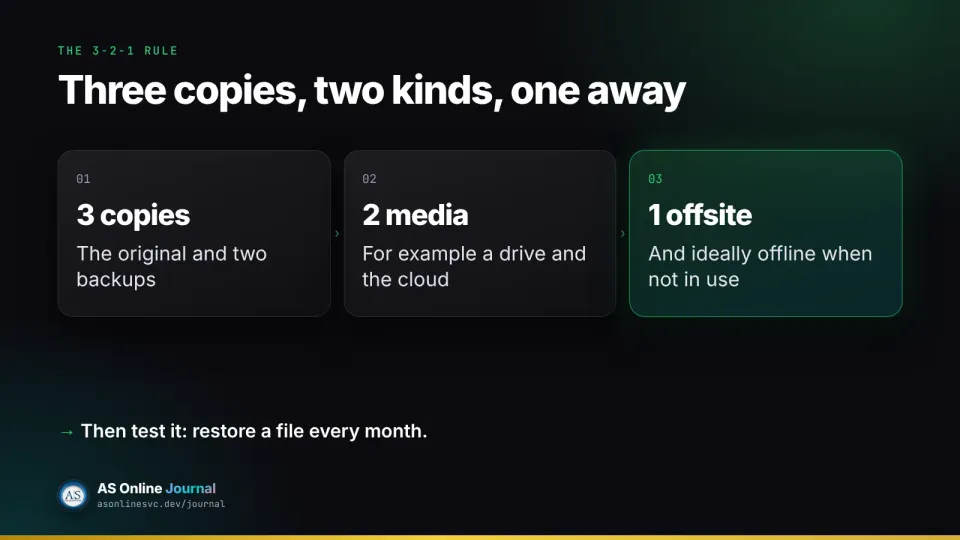
A realistic version for a small office: files on the laptop (copy 1), an automatic backup to an external drive that is unplugged when not in use (copy 2), and a cloud backup service (copy 3, offsite).
OneDrive, iCloud Drive, Google Drive and Dropbox are excellent at keeping the same files on all your devices. That is exactly what makes them risky as your only safety net: if a file is deleted, overwritten or encrypted on one device, the change can travel to every other copy. Recycle bins and version history give you a window to undo it, but that window is limited and depends on the service and your plan.
Treat sync as convenience, and keep at least one backup that sync cannot change.
The NCSC has seen ransomware incidents that encrypted not only the original data but also connected USB drives, network storage and connected cloud storage holding backups. Its first rule is the offline rule: at any given time, at least one backup should be offline, and never have all your backups connected at the same time.
In practice:
Do this once a month. Set a reminder.
Every three to six months, go further: restore a whole folder, or on a Mac, follow Apple's guide to restoring from Time Machine onto a spare drive.
| What you see | Most likely cause | What to do |
|---|---|---|
| The newest version is weeks old | Backups stopped silently: drive not plugged in, subscription lapsed, laptop always asleep at backup time | Check the backup app's last successful run; set an alert or a weekly reminder to look |
| A folder is missing from the backup | It was never included, or was moved out of a backed-up location | Compare your "important" list with the backup's settings; add the folder |
| The file restores but will not open | It was already damaged or encrypted when backed up, or the copy is incomplete | Restore an older version from before the problem started |
| The restore asks for a password nobody knows | Backup encryption key or account password not recorded | Store the recovery key in a password manager or a sealed envelope, then test again |
| Restoring everything would take days | Large volume over a slow connection | Keep a local copy for fast recovery and use the cloud copy as the last resort |
| The backup drive is not recognised | Drive failure, or formatted for a different system | Try another cable or computer; this is why the rule asks for two kinds of media |
| Your backups were encrypted along with your files | Backup storage was connected and writable when ransomware ran | Use your offline copy; then fix the setup so one copy is always offline |
The most common failure is not technical. It is that backups quietly stop and nobody notices for months. The monthly drill is designed to catch that. The second is the forgotten password or recovery key that makes an encrypted backup useless. Record it somewhere safe, away from the computer it protects, and include it in your test.
Keep 3 copies of any important file (the original and 2 backups), on 2 different types of media, with 1 copy stored offsite. The US Cybersecurity and Infrastructure Security Agency recommends it in its guidance on data backup options.
On its own, a sync service is not a full backup: if a file is deleted, damaged or encrypted on one device, that change can sync everywhere. Version history and recycle bins help for a while, but keep at least one separate backup that sync cannot change.
A quick file restore every month and a fuller test every three to six months is a sensible routine for a home or small business. The point is to test before you need it.