GuidesPractical guide

6 min readNew
Which macOS appearance settings are worth agreeing on, which should stay personal, how to write the decisions down, and a simple two-week test of whether it helped.
A small team does not need matching Macs. It needs a few shared basics that make screenshots, training notes and screen-sharing easier to follow, and a firm rule that anything to do with comfort or accessibility stays personal. You can agree it in an hour, write it on one page, and check after two weeks whether it helped. Everything below uses Apple's own setting names for macOS 27, which we checked on 24 November 2026.
Three small, real problems tend to come up when a team shares how-to notes or helps each other over a video call:
If none of these happen in your team, you can stop here. This is worth an hour only if it solves something.
Open System Settings on one Mac and look at these together.
Wallpaper. Apple's wallpaper guide covers the built-in sets (including plain Colours) and adding your own image through Your Photos. A plain colour or a simple branded image is the safest choice for screen-sharing. Avoid photos with text in them, because they compete with windows.
Dock. Agree the handful of apps everyone should find in the same place, such as the browser, chat and your file storage. People can add their own after those.
Menu bar. Agree only what helps support: for example, showing the Wi-Fi and battery status so that "are you online?" has a quick answer.
Appearance. Apple's Appearance settings in macOS 27 include Light, Dark or Auto, a Liquid Glass slider for how clear or tinted app icons look, Color for buttons and menus, Text highlight color, and Icon & widget style (Default, Dark, Clear or Tinted). There is also a switch to tint window backgrounds with the wallpaper colour. For training material, the most useful shared choice is simply which appearance and icon style you use when you take screenshots, not what everyone must use all day.
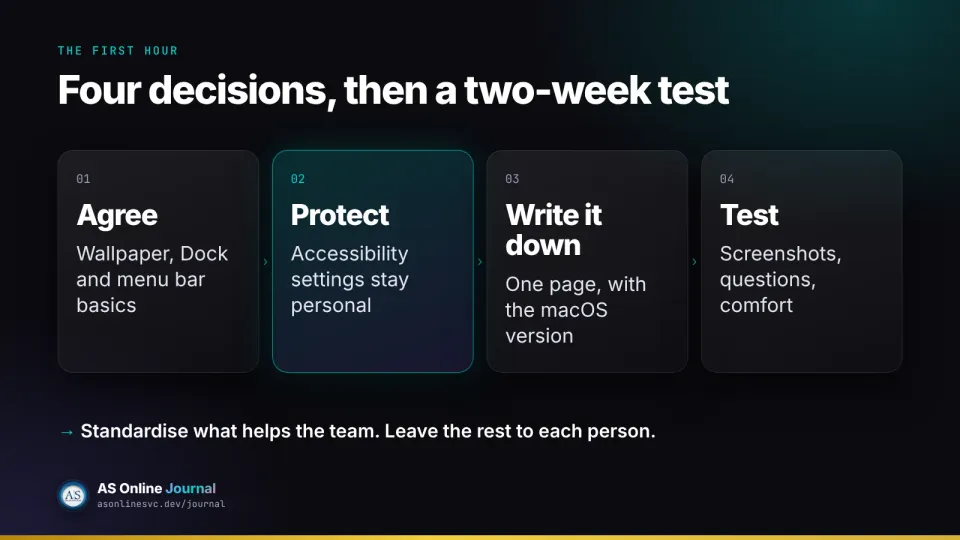
Write this down as a rule, not a suggestion: accessibility settings are never part of the team standard. Apple's Display accessibility settings include Increase contrast, Reduce transparency, Differentiate without color, text size, menu bar size, pointer size and colour filters. These exist because people's eyes, screens and needs differ. A shared look that overrides them would make work harder for exactly the people who most need it to be easy.
The same goes for Light or Dark mode during normal work. Many people have strong, practical preferences about glare and eye strain.
Keep a single shared document with:
| Item | What to record |
|---|---|
| macOS version | The version you checked against (setting names change between versions) |
| Wallpaper | File name and where to get it, or the built-in colour |
| Dock | The shared apps, in order |
| Menu bar | The shared status items |
| Screenshot style | Appearance and icon style to switch to before taking screenshots |
| Personal by design | Accessibility settings, Light or Dark for everyday work, text size |
| Review date | Two weeks from today |
That page is the real output of the hour. It is what a new starter reads, and what you check when someone asks why their Mac looks different.
Two to five Macs: do it by hand, together, with the page open. It takes a few minutes per Mac.
More Macs, or Macs you already manage: a device management (MDM) service can apply settings with configuration profiles. Apple documents a Dock payload (com.apple.dock) and a desktop payload (com.apple.desktop). One thing to know before you use the desktop payload: Apple's schema says that if you set the picture path, the picture is always locked. Lock the wallpaper only if you really need to, for example on shared or front-desk Macs.
Ask three questions at the review date:
If the answers are "no change", undo the parts that are not earning their keep. A standard that nobody notices is fine. A standard that people work around is not.
The shared look can still have personality. Our research-based look at Festivitas, the Mac app that adds festive lights, is one gentle option for December, as long as it stays optional.
This guide is free and needs no purchase. Setting names were checked against Apple's macOS 27 documentation on 24 November 2026.
Usually not. Agree a few shared basics such as wallpaper, Dock contents and menu bar items, and leave appearance mode, text size, pointer size, contrast and transparency to each person. Accessibility settings in particular should never be overridden by a team standard.
Yes, if the Macs are enrolled in a device management (MDM) service. Apple documents a Dock payload (com.apple.dock) and a desktop payload (com.apple.desktop) that can set the Dock and the wallpaper. Note that a wallpaper set through the desktop payload's picture path is locked, so people cannot change it.
The setting names come from Apple's Mac User Guide for macOS 27, checked on 24 November 2026. Older versions name some settings differently, so note the version on your team's one-page record.